MCP Server
ScrAPI provides an official Model Context Protocol (MCP) server that enables AI agents and LLM clients to scrape websites as a tool. This is ideal for building AI workflows that need access to live web data - from research agents to RAG pipelines to automated content extraction.
The MCP server can run in the cloud or be self-hosted locally using Docker or NPX.
When To Use This
- AI research agents that need to access live web content beyond their training data.
- RAG (Retrieval-Augmented Generation) pipelines that ingest real-time website content.
- Automated workflows where an LLM needs to interact with web pages (clicking, form filling) before extracting data.
- Content summarization tasks where an AI reads and processes web pages directly.
- Ecommerce price and stock monitoring where an agent needs live product page data from JavaScript-heavy or bot-protected stores.
Tools
The MCP server exposes two tools for scraping:
1. scrape_url_html
Scrapes a URL and returns the result as HTML. Best when you need structural information about the page - element attributes, layout, tables, or forms.
- Inputs:
url(string, required): The URL to scrape.browserCommands(string, optional): JSON array of browser commands to execute before scraping.
- Returns: HTML content of the page.
2. scrape_url_markdown
Scrapes a URL and returns the result as Markdown. Best when you need clean text content - articles, documentation, or any page where the text matters more than the structure.
- Inputs:
url(string, required): The URL to scrape.browserCommands(string, optional): JSON array of browser commands to execute before scraping.
- Returns: Markdown content of the page.
Tip: Use the Markdown tool for LLM consumption - it produces cleaner, more token-efficient output. Use the HTML tool when you need to parse specific elements or preserve page structure.
Browser Commands
Both tools support optional browser commands for interacting with the page before scraping. This is useful for:
- Clicking buttons (e.g., “Accept Cookies”, “Load More”)
- Filling out forms and submitting searches
- Selecting dropdown options
- Scrolling to trigger lazy-loaded content
- Waiting for dynamic elements to appear
- Executing custom JavaScript
Available Commands
Commands are provided as a JSON array string. All commands execute with human-like behavior (random mouse movements, variable typing speed, realistic delays):
| Command | Value | Example |
|---|---|---|
| click / tap | CSS selector of the element to click. | { "click": "#buttonId" } |
| input / fill / type | CSS selector and value to enter. | { "input": { "input[name='email']": "example@test.com" } } |
| select / choose / pick | CSS selector and value to select. | { "select": { "select[name='country']": "USA" } } |
| scroll | Pixels to scroll (negative = up). | { "scroll": 1000 } |
| wait | Milliseconds to wait (max 15000). | { "wait": 5000 } |
| waitfor / wait-for / wait_for | CSS selector to wait for. | { "waitfor": "#newForm" } |
| javascript / js / eval | JavaScript to execute on the page. | { "javascript": "console.log('hello!!')" } |
Example
[
  {"click": "#accept-cookies"},
  {"wait": 2000},
  {"input": {"input[name='search']": "web scraping"}},
  {"click": "button[type='submit']"},
  {"waitfor": "#results"},
  {"scroll": 500}
]
For help finding CSS selectors, try the Rayrun browser extension.
For full command documentation, see the Browser Commands reference.
Setup
Cloud Server (SSE / Streamable HTTP)
The ScrAPI MCP Server is available in the cloud at:
- SSE:
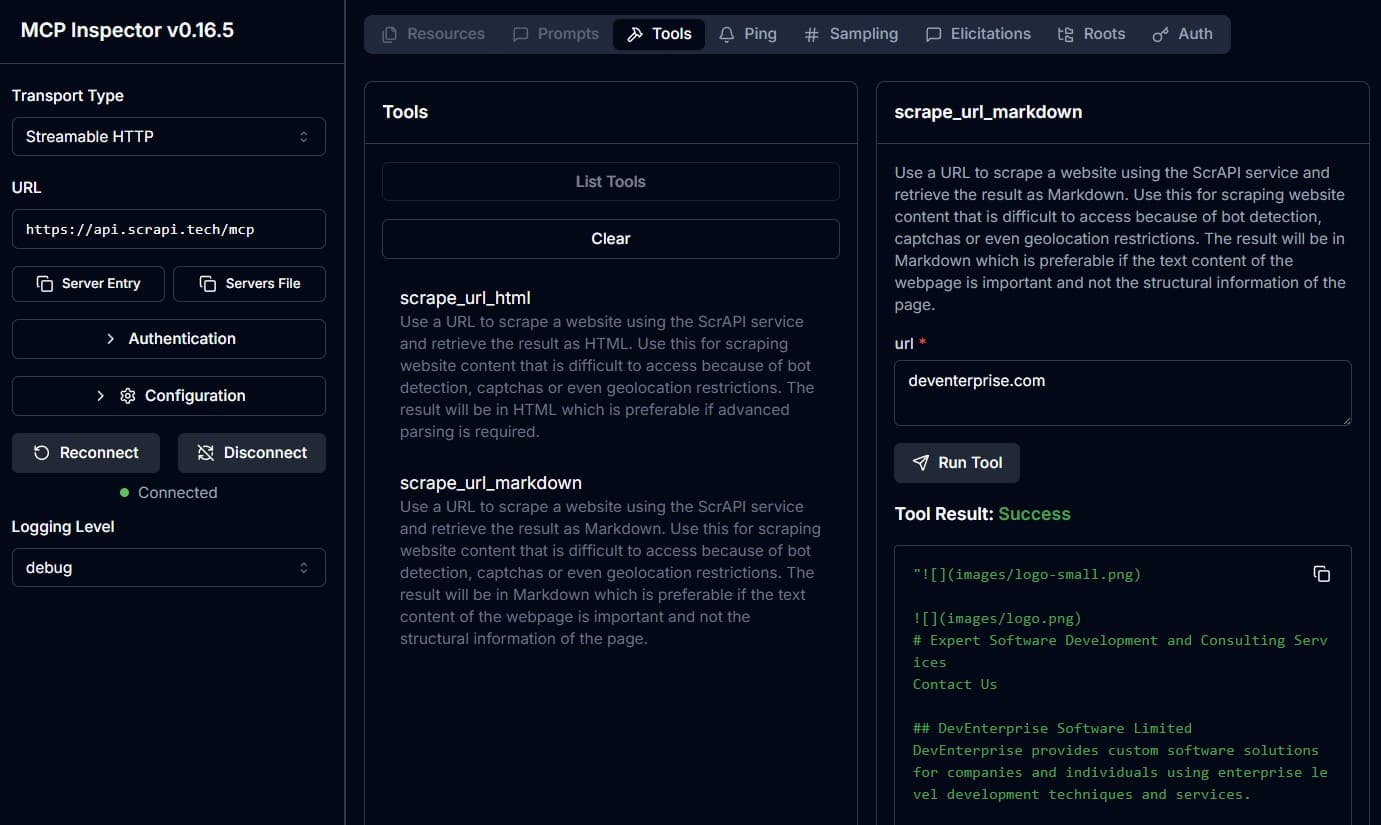
https://api.scrapi.tech/mcp/sse - Streamable HTTP:
https://api.scrapi.tech/mcp
You can connect from custom clients or test with MCP Inspector. Cloud MCP supports authenticated ScrAPI requests. Pass your API key using either:
X-API-KEY: <YOUR_API_KEY>request header?apiKey=<YOUR_API_KEY>query parameter, for clients that cannot send custom headers
For example:
https://api.scrapi.tech/mcp?apiKey=<YOUR_API_KEY>https://api.scrapi.tech/mcp/sse?apiKey=<YOUR_API_KEY>
Local Setup with Claude Desktop
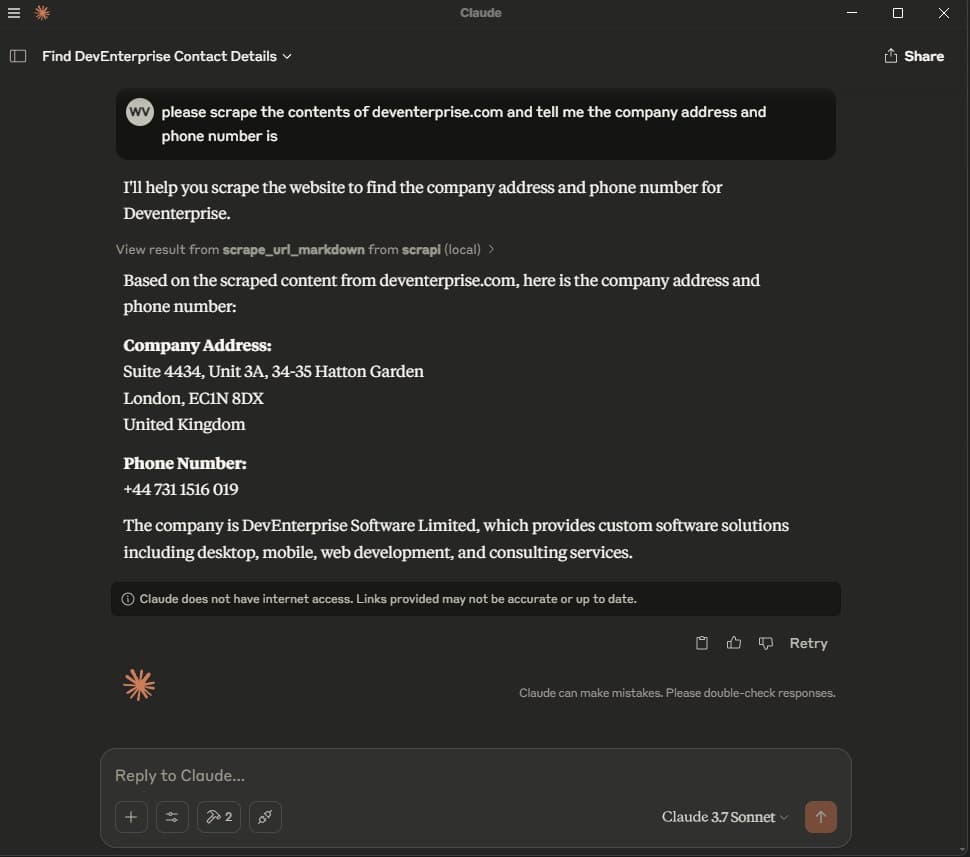
The local hosted package is available at github.com/DevEnterpriseSoftware/scrapi-mcp. Use it when you want the API key held in your local MCP process instead of passing credentials to a cloud MCP client.
Add one of the following configurations to your claude_desktop_config.json:
Using Docker
{
  "mcpServers": {
    "scrapi": {
      "command": "docker",
      "args": [
        "run",
        "-i",
        "--rm",
        "-e",
        "SCRAPI_API_KEY",
        "deventerprisesoftware/scrapi-mcp"
      ],
      "env": {
        "SCRAPI_API_KEY": "<YOUR_API_KEY>"
      }
    }
  }
}
Using NPX
{
  "mcpServers": {
    "scrapi": {
      "command": "npx",
      "args": [
        "-y",
        "@deventerprisesoftware/scrapi-mcp"
      ],
      "env": {
        "SCRAPI_API_KEY": "<YOUR_API_KEY>"
      }
    }
  }
}
Ecommerce Monitoring Prompt
After connecting ScrAPI MCP, try a prompt like:
Use ScrAPI to check this product page and return the current price, stock status,
currency, and the CSS selectors you used so I can create a recurring ecommerce
price monitor.

URL: https://scrapi.dev/training-sites/ecommerce/products/classic-trainer
For recurring monitoring without maintaining your own browser workers, use the hosted ecommerce price monitoring beta.
Related Features
- Browser Commands - Full reference for all browser automation commands.
- HTML or Markdown Response - Understand the difference between HTML and Markdown formats.
- Captcha Solving - The MCP server automatically handles captchas with a real browser.
- SDK / API Client - If you prefer direct API integration over MCP.